iPhone and Android guide · steps checked 25 October 2026
Caller ID from your Outlook contacts, on iPhone and Android
Your phone can only put a name to a number that's in its own contacts. When someone who has emailed you rings, their number is in their email signature, not your phone, so all you see is the number. There are three ways to fix that, from one caller at a time to everyone who has ever emailed you.
The Outlook app on your phone can copy your Outlook contacts into the phone's contacts, so they show by name when they call: it's Save Contacts on iPhone and Sync Contacts on Android. That only covers the people saved in Outlook, and at work your company can switch it off. Most people who email you were never saved, so their numbers are only in their signatures. Sigbot reads those signatures and puts the people on your phone, or on iPhone labels their calls without adding anything to your contacts.
The three ways compared
Outlook's setting
Save the caller
Sigbot
Who shows by name
The contacts saved in Outlook
The callers you save, after they've rung
The people whose signatures are in your mailbox, or a folder you pick
Kept up to date
Yes, from Outlook
Only when you edit them
Yes, from Sigbot, which checks your mail for new signatures
At work
Your company can turn it off
Always works
Most companies have IT approve Sigbot once, for everyone
1. Turn on Outlook's Save Contacts or Sync Contacts.
If you use the Outlook app on your phone, this copies your Outlook contacts into the phone's own contacts, where caller ID looks for them.
Outlook for iPhone
Save Contacts
If you have more than one account on the iPhone, open Settings > Contacts (Settings > Apps > Contacts on iOS 18 and later) and check that Default Account is iCloud.
In Outlook, open Settings (the gear) and select your account.
Turn on Save Contacts, and allow Outlook to use your contacts if it asks.
Keep Outlook open while the first copy runs: it only starts with Outlook on screen.
Outlook for Android
Sync Contacts
In Outlook, go to Settings.
Under Accounts, tap your account.
Switch Sync Contacts on.
Greyed out, with "Contacts sync isn't turned on in system settings"? Turn on Auto sync data in your phone's account settings, then try again.
On a work account, your company may have switched this off. Microsoft lets IT block Save Contacts for work or school accounts, or lock the setting on or off. If you can't find it or can't change it, that's usually why: ask your IT team.
What it doesn't cover. It copies your Outlook contacts: the people saved in Outlook. Someone who has only emailed you isn't an Outlook contact until you save them, so their number stays in their signature and your phone still shows just the number.
On iPhone the copy goes one way, so Microsoft says to edit these contacts in Outlook, not in the iPhone's Contacts app. On Android it goes both ways.
2. Save the caller after they ring.
Once an unknown number has called, you can save it from your call list in a few taps. Look up who it was in your email first, and copy their name and company from the signature.
iPhone
From the Phone app
Open Phone and tap the number in your list of calls. On iOS 18, tap Recents, then the More Info button next to the number.
Tap Create New Contact, or Add to Existing Contact and choose the person.
Add their name and company, and save.
Android (Phone by Google)
From your call history
Open the Phone app. Your call history is on the Home tab.
Tap the call, then Create new contact, or Add to contact to add the number to someone you've saved.
Add their name and company, then save. Other phone makers' Phone apps word these steps a little differently.
That fixes the second call, not the first, and one person at a time. On iPhone, Apple's Mail app can also suggest new contacts from the mail you receive, which you add one at a time; that doesn't apply to mail you read in the Outlook app.
3. Everyone who has emailed you, with Sigbot.
Sigbot reads the email signatures in Outlook and Microsoft 365 and turns each one into a contact, phone numbers included. Its iPhone and Android apps then put those people on your phone, so the first call from someone who has only ever emailed you already shows their name and company.
Step 1
Build the list
Start free and connect Outlook. The first scan reads the signatures in your mailbox and files each person as a contact.
Step 2
Get the phone app
Install Sigbot from the App Store or Google Play and log in with the same account.
Step 3
Turn on Caller ID
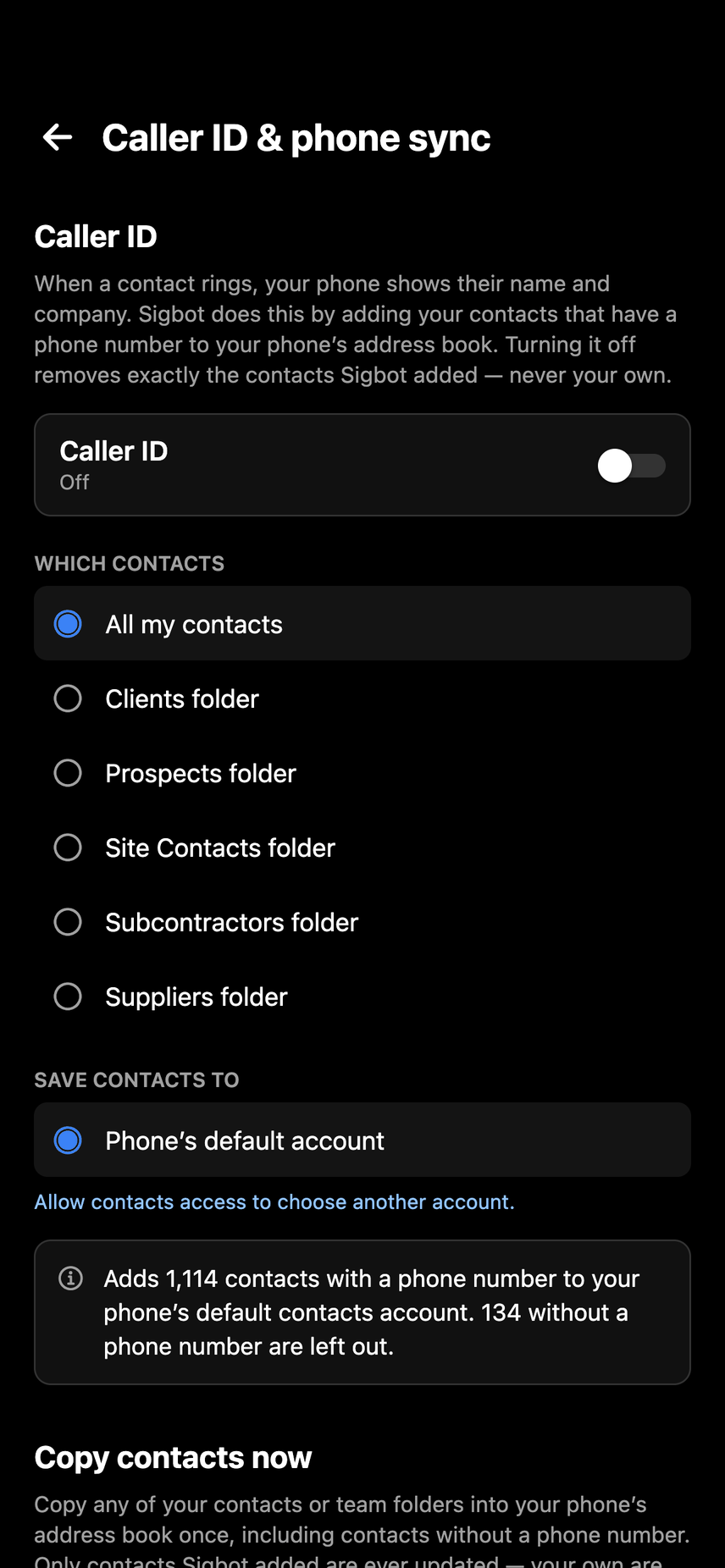
Open Profile > Caller ID & phone sync. Choose all your contacts or one folder, plus any team folders, and switch it on.
iPhone
Label calls, or add contacts
Label calls without adding contacts (recommended on iPhone): when a contact rings, your iPhone shows "Name – Company (Sigbot)" under the number. Nothing is added to your contacts, and the list stays on the iPhone. One more step: switch Sigbot on in Settings > Apps > Phone > Call Blocking & Identification; the app has a button that opens it.
Or add them to your address book, as on Android.
iPhone and Android
Add to my address book
Sigbot adds the chosen contacts that have a phone number to your phone's contacts, and keeps them up to date.
Before you switch it on, it tells you how many it will add and where they'll go (iCloud, a work account or the phone itself), and you can pick the account.
It only ever touches the contacts it added. Switch it off and it removes exactly those.
Profile > Caller ID & phone sync, before it's switched on. Demo data.
It keeps up by itself. After the first scan, Sigbot checks your mailbox for new mail: every day on paid plans, every week on Free. New people are added as they email you, and Caller ID picks them up on your phone.
At work, IT approves it once. Microsoft's default setting stops people giving any outside app access to their mail, so most companies have an admin approve Sigbot once, for everyone. Sigbot's Outlook app is publisher-verified by Microsoft (SIGBOT LTD). Our one-page brief for IT admins has the approval link.
For a team: on team plans you share folders, so everyone's phone can show the callers the whole team deals with, not just the ones in their own inbox.
Questions.
Why does my phone show only a number when someone who has emailed me calls?
Your phone names a caller only when their number is saved in its contacts. If they've only emailed you, their number is in their email signature, not your phone. Save them as a contact, or use a tool such as Sigbot that adds the people from your email signatures to your phone.
Does Outlook's Save Contacts give me caller ID?
Yes, for the contacts saved in Outlook. Turn on Save Contacts in Outlook for iPhone, or Sync Contacts in Outlook for Android, and those contacts show by name when they call. People who have only emailed you aren't Outlook contacts, so they aren't included.
Why can't I turn on Save Contacts in Outlook?
On a work or school account, your company can block it or lock the setting through Microsoft Intune. Outlook also needs permission to use your phone's contacts, and on Android the phone's Auto sync data must be on.
Can I get caller ID on iPhone without adding contacts to my address book?
Yes. Sigbot's iPhone app can label calls instead: when one of your Sigbot contacts rings, the iPhone shows "Name – Company (Sigbot)" under the number, and nothing is added to your contacts. You switch Sigbot on once in Settings > Apps > Phone > Call Blocking & Identification.
Does Sigbot's Caller ID work on Android?
Yes. On Android, Sigbot adds your contacts to the phone's address book and keeps them up to date, so calls show a name and company instead of a number. Call labels are iPhone only.
Will Sigbot change the contacts already on my phone?
No. It only touches the contacts it added itself, and switching Caller ID off removes exactly those.
Which contacts does Sigbot put on my phone?
The ones with a phone number, from all your Sigbot contacts or one folder you choose, plus any team folders you pick.
Does the phone app cost extra?
No. The iPhone and Android apps are free downloads and come with every Sigbot plan, Free included.
Sources.
Every Outlook, iPhone and Android step above was checked against these pages on 25 October 2026. Menus change from time to time; if yours look different, these pages have the latest steps.
Outlook, Microsoft 365 and Intune are trademarks of the Microsoft group of companies. iPhone and iCloud are trademarks of Apple Inc. Android and Google Play are trademarks of Google LLC.
Know who's calling, first time.
Connect Outlook once and everyone whose signature is in it can show by name on your phone. Or see it on a 20-minute call first.