Outlook guide · steps checked 20 October 2026
How to extract contacts from Outlook emails into Excel
Most of the people you deal with are in your inbox, not in your contacts. Their name, job title, company and phone number are in the signature at the bottom of every email they've sent you. There are three ways to get them into a spreadsheet, and each gets you something different.
1. Export your saved contacts from Outlook.
This gets you everyone in your Contacts folder, with the details that were saved for them. It misses anyone you haven't saved, and for most people that's nearly everyone who emails them.
Not sure which Outlook you have? If there's a File option at the top left, it's classic Outlook. If not, follow the steps for new Outlook.
Classic Outlook for Windows
Export to a CSV file
- Choose File.
- Choose Open & Export > Import/Export.
- Choose Export to a file, then Comma Separated Values.
- Select the Contacts folder under your account.
- Choose Browse, name the file, choose OK, then Next.
- Choose Finish. There's no message when it's done: the progress box just closes.
New Outlook for Windows
Export contacts
- On the side panel, select People.
- On the ribbon, select Export contacts.
- Under Contacts from this folder, choose an option, then select Export.
- The .csv file is saved to your Downloads folder.
Outlook on the web and Outlook.com
Manage contacts
- On the side panel, select People.
- On the toolbar, select Manage contacts > Export contacts.
- Choose All contacts or one folder, then select Export.
- The .csv file is saved to your Downloads folder.
Open the .csv file in Excel. If you'll import it somewhere again later, Microsoft suggests closing it without saving changes, so the file stays as Outlook wrote it.
What about the emails themselves? Microsoft documents a CSV export for contacts only. Email exports to an Outlook Data File (.pst): in classic Outlook through File > Open & Export > Import/Export > Export to a file > Outlook Data File (.pst), and in new Outlook through Settings > Files > Export. A .pst is a backup of your mailbox for Outlook to open, not a list of the people in it.
3. A whole mailbox, or a whole team, with Sigbot.
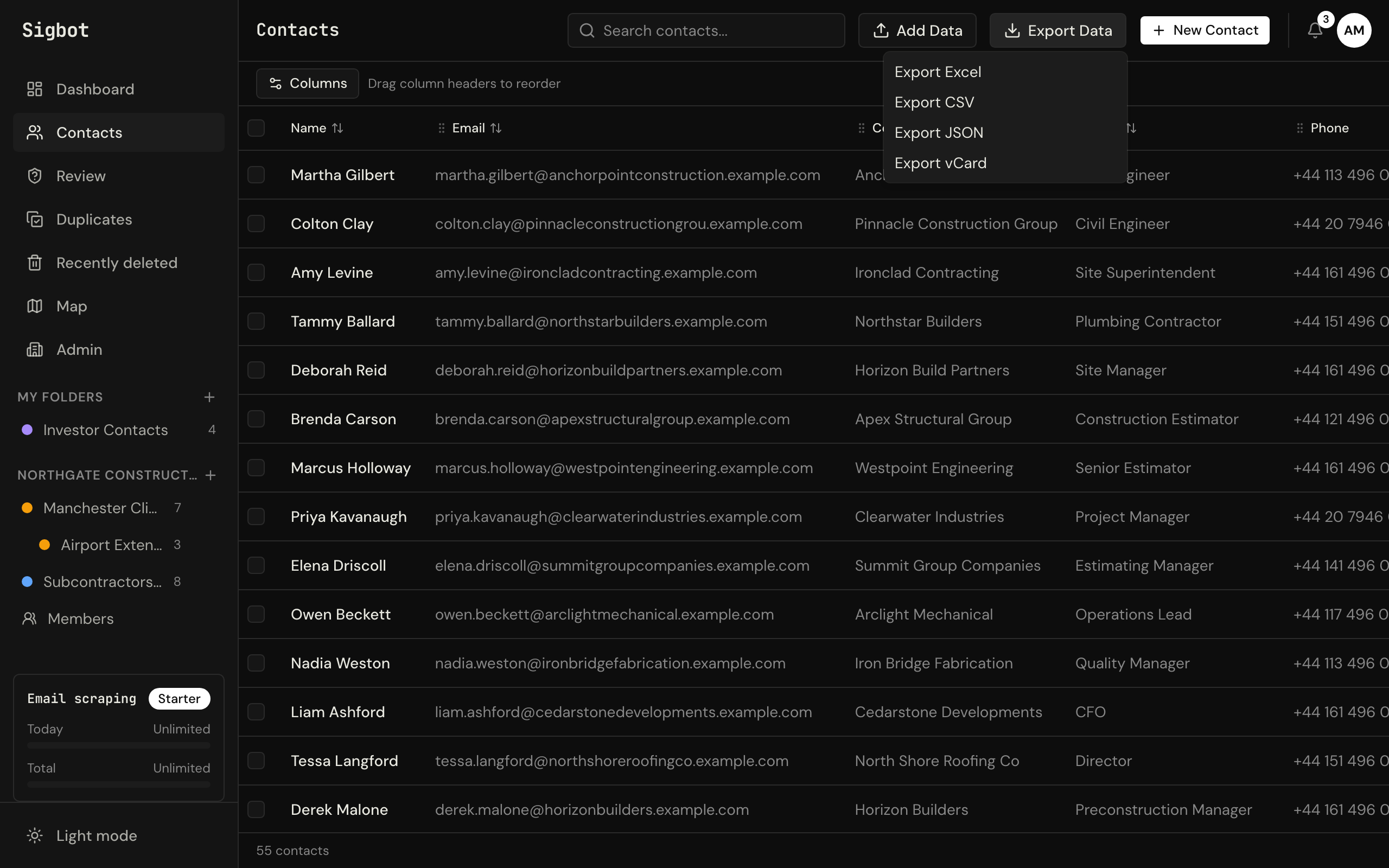
Sigbot reads the email signatures in Outlook and turns each one into a contact: name, job title, company, phone, email and address. Then you export the list to Excel or CSV. It works with Outlook and Microsoft 365.
Step 1
Connect Outlook
Start free and connect your Outlook with your Microsoft account.
Step 2
Scan, then check the review queue
The first scan reads the mail already in your mailbox. Newsletters and no-reply mail wait in a review queue instead of going straight into your list, and merges can be undone.
Step 3
Export to Excel or CSV
Download the whole list as an Excel or CSV file whenever you need it.
It keeps up by itself. After the first scan, Sigbot checks your mailbox for new mail by itself: every day on paid plans, every week on Free. New people are added as they email you, so next month's export has them too. Addresses that bounce are flagged and left out of exports; nothing is deleted automatically.
For a team: everyone connects their own Outlook, and on team plans you share folders, so the whole team works from one shared contact list built from everyone's Outlook.
At work, IT approves it once. Microsoft's default setting stops people giving any outside app access to their mail, so most companies have an admin approve Sigbot once, for everyone. Sigbot's Outlook app is publisher-verified by Microsoft (SIGBOT LTD). Send your IT team our one-page brief for IT admins: it has the approval link and what Sigbot reads and keeps.
Prefer a spreadsheet to start from? Our free subcontractor and supplier list template (Excel and CSV) starts with the same columns as Sigbot's export.