Free download · Excel and CSV · no email needed
Free subcontractor database template
A ready-made spreadsheet for your subcontractor and supplier list: trade and approval drop-downs, insurance dates that turn red when they lapse, and the same contact columns Sigbot uses.
Excel workbook, 15 KB, with three sheets: Subcontractors, How to use and Lists. The CSV has the same columns without the drop-downs. The 10 example rows are made up, so delete them before you start.
What's in the template.
One row per person, 19 columns. The first 14 are the contact columns Sigbot uses; the last 5 are for running a bid list.
| First Name | Last Name | Email | Company | Trade | Approved | Insurance Expiry |
|---|
| Dan | Whitmore | dan.whitmore@quillmoor-electrical.example | Quillmoor Electrical Ltd | Electrical | Yes | 2027-03-31 |
| Tom | Ashby | tom.ashby@tenterby-groundworks.example | Tenterby Groundworks Ltd | Groundworks | Pending | 2026-10-15 |
| Hannah | Reid | hannah.reid@kelvinbrae-scaffolding.example | Kelvinbrae Scaffolding Ltd | Scaffolding | No | 2026-06-30 |
Swipe the table sideways for more columns. Three of the ten example rows, with some columns left out. In the file, an expired insurance date turns red and one due in the next 30 days turns amber. Every example is fictional: the email addresses end in .example and the phone numbers are in ranges set aside for drama and testing.
Columns 1 to 14
The contact columns
First Name, Last Name, Email, Phone, Mobile, Company, Job Title, Location, Website, Sector, Business Type, Tags, Notes and Last Updated.
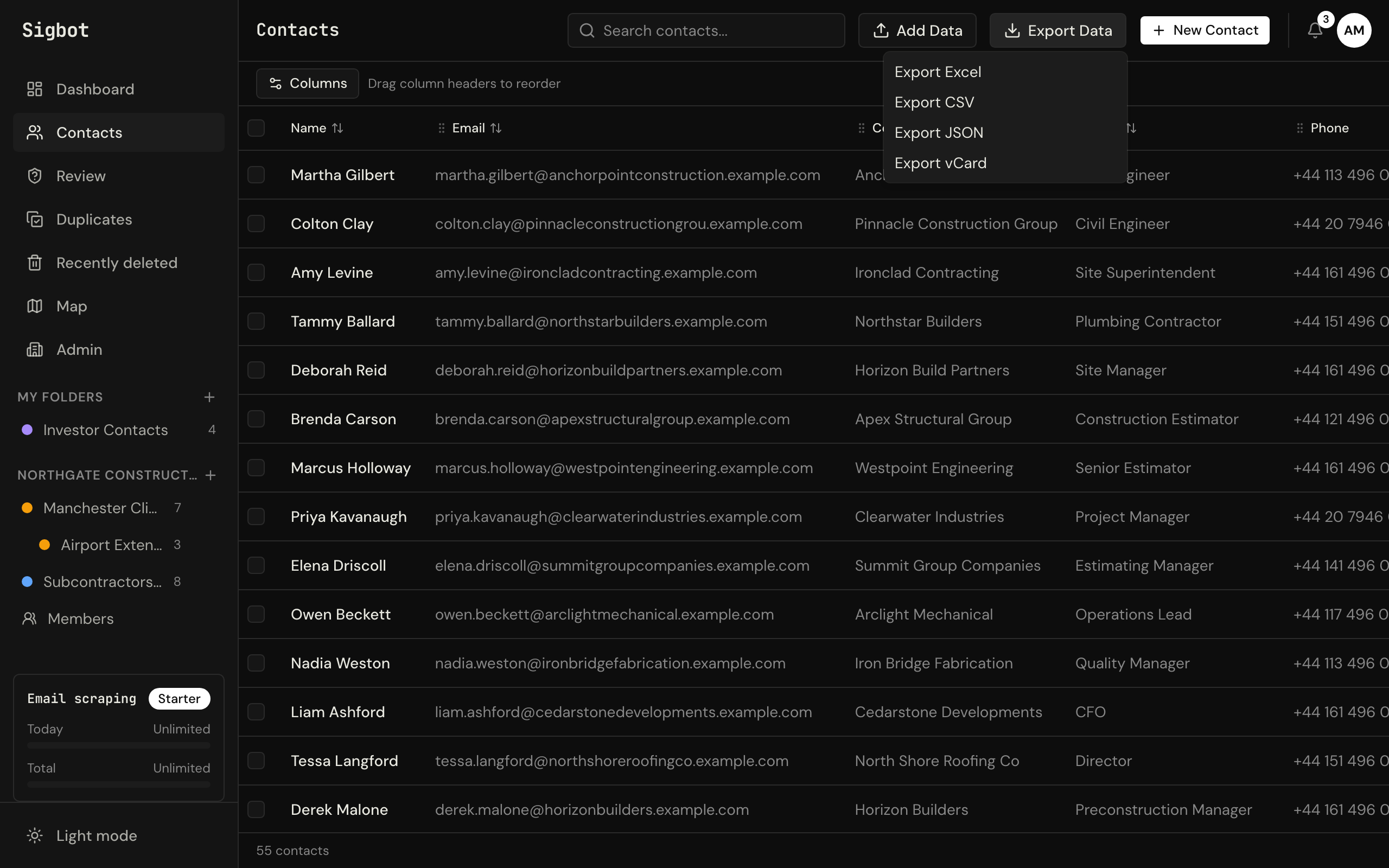
- The same columns, in the same order, as Sigbot's Excel and CSV export.
- Phone and Mobile are formatted as text, so a number starting with 0 keeps it.
- Last Updated is the date someone last checked the row.
Columns 15 to 19
The construction columns
Trade, Region, Approved, Insurance Expiry and Last Bid Date.
- Trade and Approved are drop-downs. The trade list is on its own sheet, so you can change it.
- Insurance Expiry turns red once a date has passed and amber in the 30 days before.
- Last Bid Date shows who you haven't invited for a while.
The header row stays in place as you scroll, and every column has a filter. The How to use sheet repeats these instructions inside the file.
Or let Sigbot fill it in from Outlook.
Every sub, supplier and consultant who has ever emailed your team, in one list, without anyone typing a contact in again.
Fill it
From the signatures in Outlook
Sigbot reads the email signatures already in your team's Outlook and turns each one into a contact: name, job title, company, phone, email and address.
Keep it current
Each scan brings it up to date
When a sub moves firms and emails you again, the next check updates the record. After the first scan, Sigbot checks for new mail by itself every day on paid plans (weekly on Free), and only reads mail it hasn't seen. Newsletters and no-reply mail wait in a review queue, and merges can be undone.
Export it
The same columns, any time
Export the whole list to Excel or CSV whenever you need it, for an ITB or a tender return. The export starts with the same 14 columns as this template.
Already keeping a list? Bring it into Sigbot: in the web app choose Add Data, then Import (Excel/CSV/vCard), and pick the file. First Name to Notes are matched to Sigbot's fields for you. Every row needs an email address; rows without one are skipped.
The Trade column goes into Sigbot's Trade field on every plan, matched to your trade list; trades the list doesn't have yet are kept too. Region, Approved, Insurance Expiry and Last Bid Date each need a column of their own in Sigbot, which the import can make on paid plans; otherwise they stay in your spreadsheet. To take them in on Free, copy approval status into Tags, and insurance and bid dates into Notes, before you import.