Guide · 25 October 2026

How to turn email signatures into a contact database

Everyone who emails you puts their details at the bottom of every message: name, job title, company, phone number. Put together, those signatures are the most up-to-date contact list you have. Here's how to collect them into one, by hand or automatically, and what makes the list worth keeping.


The short answer.

Outlook keeps the contacts you save, but it doesn't read the signatures in your mail and fill them in for you. So there are two ways to get from signatures to a contact list. You can copy each person across by hand, which is fine for a few people. Or you can use a tool that reads the signatures and files each person as a contact. Sigbot does that for Outlook and Microsoft 365: it reads a whole mailbox, or a whole team's, checks for new mail after that, and puts the list on your phone too.

The two ways compared
By hand Sigbot
Who's in it Whoever you copy across Everyone whose signature is in your mailbox, or your team's mailboxes
What you get What you copy from each signature Name, job title, company, phone, email and address from each signature
Keeping it up to date Edit each contact when you notice a change Checks for new mail by itself: daily on paid plans, weekly on Free
Sharing it Send the spreadsheet round Share a folder, so the whole team works from the same list (team plans)
On your phone Type them in again Caller ID sync adds them to your phone's address book

1. Copy signatures across by hand.

For a handful of people, do it yourself. Pick one place for the list and use the same columns every time, so it stays sortable.

Into Outlook

Add each sender as a contact

  1. Open one of their emails and select their name.
  2. Choose Add to contacts on the card that opens. Each version of Outlook words it slightly differently: the steps for each one.
  3. Copy their job title, company and phone numbers from the signature, then save.
Into a spreadsheet

One row per person

  1. Make columns for First name, Last name, Company, Job title, Email, Phone, Mobile and Address, plus a Notes column.
  2. Paste each signature's details into its own row.
  3. Add a Last updated date, so you can tell which rows are old.

That's fine for five people. For a few hundred it takes days, and the list starts going out of date the day someone changes their number or their job. Work in construction? Our free subcontractor and supplier list template (Excel and CSV) starts with the same columns as Sigbot's export.


2. Read every signature automatically, with Sigbot.

Sigbot reads the email signatures in Outlook and turns each one into a contact. It works with Outlook and Microsoft 365, and it only reads mail: it can't send, move or delete anything.

Step 1

Connect Outlook

Start free and connect your Outlook with your Microsoft account. No card needed.

Step 2

Run the first scan

Sigbot reads the signatures in the mail already in your mailbox and files each person as a contact. Newsletters and no-reply mail wait in a review queue instead.

Step 3

Search, share, take it with you

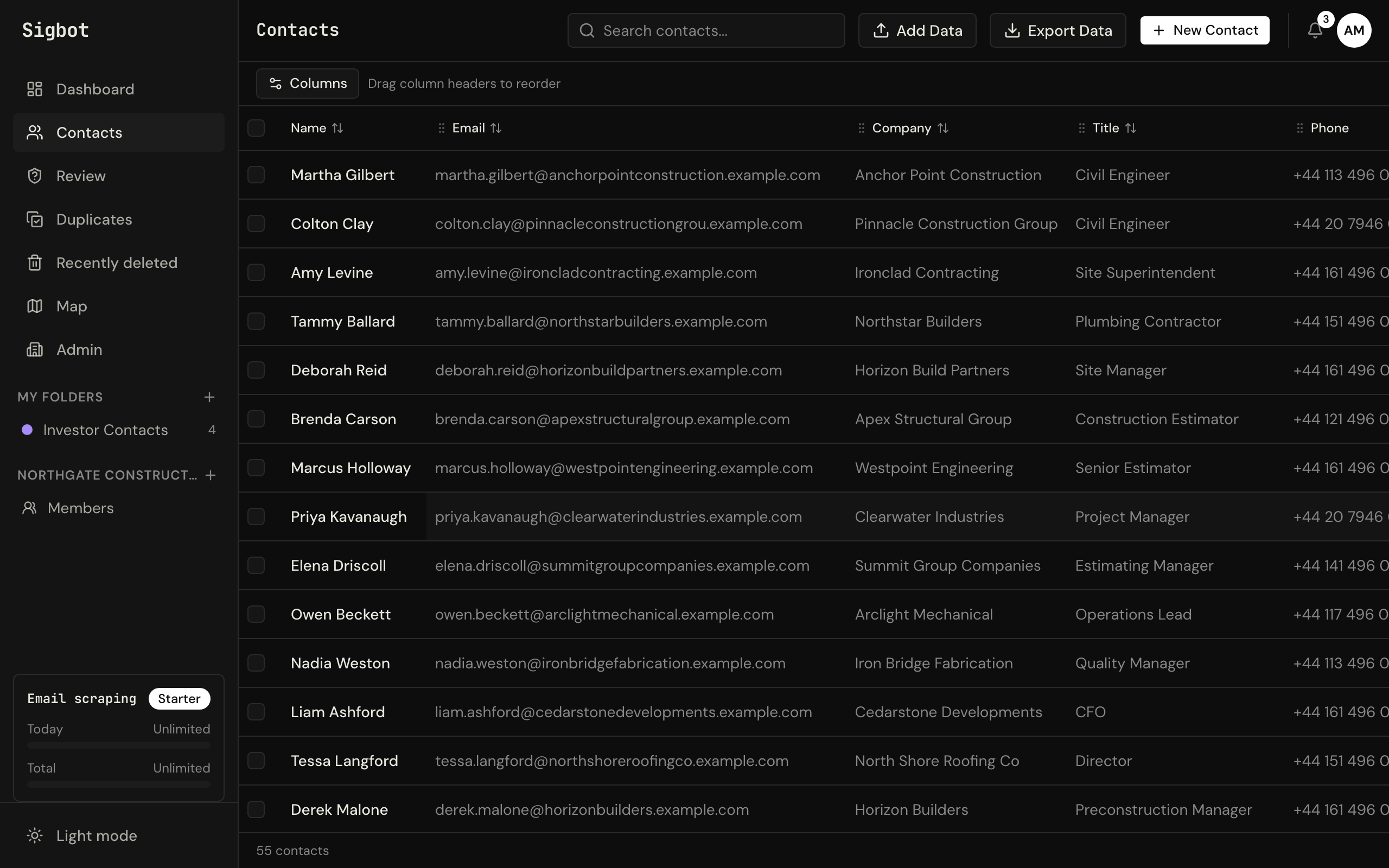
Search by name or company, share folders with your team, export to Excel or CSV, and add the list to your phone's address book.

sigbot.app/contacts
The Sigbot contacts table with sortable name, email, company and title columns, search, and the folder tree in the sidebar

At work, IT approves it once. Microsoft's default setting stops people giving any outside app access to their mail, so most companies have an admin approve Sigbot once, for everyone. Sigbot's Outlook app is publisher-verified by Microsoft (SIGBOT LTD). Our one-page brief for IT admins has the approval link and says what Sigbot reads and keeps.


What a contact database built from signatures needs.

Collecting signatures is the easy part. These are what make the list one people trust, whichever way you build it.

One row per person

No duplicates

People write from more than one address, and sign off differently on their phone. Keep one contact per person and merge the rest into it. In Sigbot, merges can be undone if two people get joined by mistake.

Only real people

No newsletters or no-reply mail

Mailing lists and automated mail have signatures too. Keep them out. Sigbot holds them in a review queue for you to approve or reject.

Current details

Kept up to date

A signature list is only as good as its latest email. Sigbot checks each mailbox for new mail by itself after the first scan: daily on paid plans, weekly on Free. Addresses that bounce are flagged and left out of exports, and nothing is deleted automatically.

Everywhere you work

Shared, and on your phone

A list on one laptop helps one person. On team plans, everyone connects their own Outlook and you share folders. The iPhone and Android apps can add the list to your phone's address book, so calls show a name and company.


Questions.

Can Outlook turn email signatures into contacts by itself?

No. Outlook remembers the names and addresses of people you've sent mail to, to suggest them as you type, but it doesn't read the job titles or phone numbers in signatures. It saves a contact when you add one, with the details you type in. To save someone's job title, company and phone number from their signature, you copy them across yourself, or use a tool such as Sigbot that reads the signatures for you.

Is Sigbot an email signature manager?

No. Signature managers design your own company's email signature and roll it out to everyone's Outlook. Sigbot does the opposite job: it reads the signatures other people send you and turns them into contacts.

What does Sigbot take from a signature?

Name, job title, company, phone, email and address, as they appear in the signature.

Which email accounts does it work with?

Outlook and Microsoft 365.

Does Sigbot send email or change anything in my mailbox?

No. It asks Microsoft for permission to read mail, and that permission can't send, move or delete anything. It doesn't change your Outlook contacts either.

Does my email go to an AI?

Only a signature block, at most 4,000 characters, may go to our AI provider, and you can switch that off. Your contacts are stored in the EU.

How does the list stay up to date?

After the first scan, Sigbot checks each connected mailbox for new mail by itself: every day on paid plans, every week on Free. You can also run a scan whenever you like.

Can my whole team share one list?

Yes, on team plans. Everyone connects their own Outlook, and you share folders, so the whole team works from one contact list built from everyone's mail.

Can I get the list into Excel?

Yes. Export the whole list, or a selection, to Excel or CSV whenever you need it. Bounced addresses are left out unless you ask for them.
Outlook and Microsoft 365 are trademarks of the Microsoft group of companies.

Turn your signatures into a contact list.

Connect Outlook once and every signature in it becomes a contact. Or see it on a 20-minute call first.

Just need a spreadsheet? How to get contacts from Outlook into Excel.