Sigbot's iPhone app can copy the contacts on your phone into Sigbot, into a personal folder called Phone contacts. From there you export them to Excel or CSV, on their own or with everyone whose email signature is in your Outlook. It's in the iPhone app from version 2.1.3, and coming to the Android app next.
Step 1
Import from your phone
Get Sigbot from the App Store and log in. On the Contacts tab, tap +, then Import from your phone. Read what happens, tap Continue and allow access to your contacts.
Step 2
Tick who to copy
Nothing is ticked for you: tick the people you want, or Select all, then Import. They go into your Phone contacts folder.
Step 3
Export to Excel or CSV
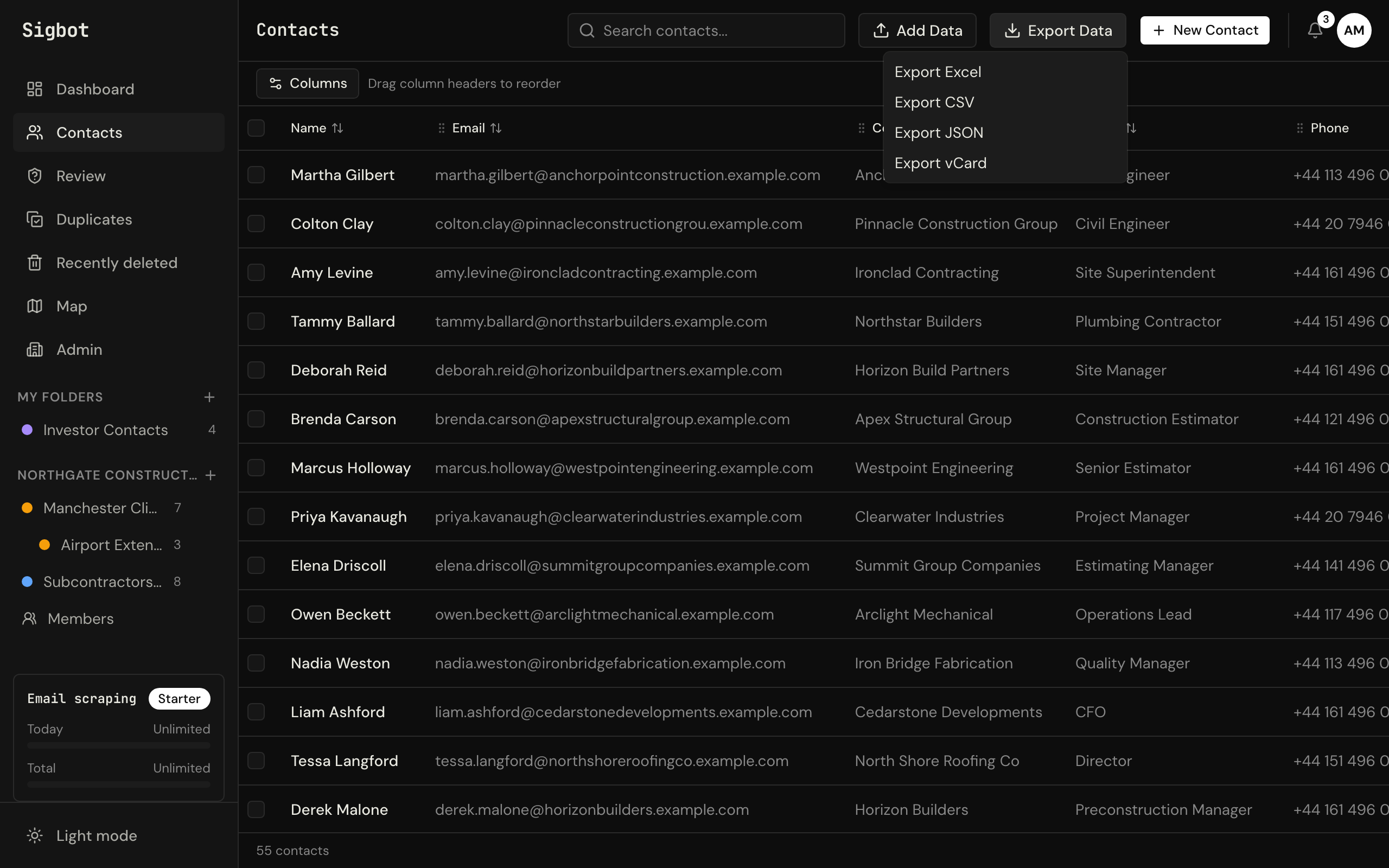
At sigbot.app, open the Phone contacts folder and choose Export Data > Excel (.xlsx) or CSV (.csv).
Someone already in Sigbot? If a contact on your phone might already be in Sigbot, with the same email address or number, say, the app asks "Is this the same person?" before treating them as one. Yes fills in what Sigbot is missing from your phone; No adds them as a separate contact.
What's in the file. The same columns as every Sigbot export: First Name, Last Name, Email, Phone, Mobile, Company, Job Title, Location and more. Export just the Phone contacts folder, or everything at once. Phone contacts count towards your plan's contact allowance, like any other contact (see pricing).
Only what you tick leaves your phone. Those contacts are copied into your own Sigbot account, and Sigbot uses them only to show them to you: in your list, on the map and for Caller ID. It never messages them, and you can delete them at any time, like any other contact. Importing doesn't change the contacts on your phone. More in our privacy policy.
The rest of your contacts are in your email. Connect Outlook or Microsoft 365, and Sigbot reads the signatures in your mailbox and files each person as a contact, so the same export can include everyone whose signature is in your mailbox: how to extract contacts from Outlook emails into Excel.
For a team. Your Phone contacts folder is yours alone. On team plans you can add any of them to a team folder, so the whole team can use them: how to share contacts with your team.
On Android today, use Google Contacts as above: Import from your phone is coming to the Android app next.