Outlook guide · steps checked 26 October 2026

How to share Outlook contacts with your team

Outlook keeps contacts in each person's own mailbox, so the supplier one of you saved last month isn't in anyone else's list. Microsoft gives you a few ways to share them, and which ones work depends on the version of Outlook your team uses. Here they are, with what each one can't do, then how to build one list from everyone's mail.


The short answer.

In classic Outlook for Windows, with a work account on Microsoft Exchange, you can share a contacts folder: select it in People, then Home > Share Contacts. Microsoft doesn't support that in Outlook on the web, and lists it as under investigation for new Outlook. For a list the whole company can use, an admin can set up a shared mailbox, or add outside contacts to the company address book. Anyone can export contacts to a CSV file and send it round, but that's a copy that starts going stale the day it's sent. Sigbot takes a different route: everyone connects their own Outlook, and on team plans you share folders, so the whole team works from one contact list built from everyone's mail.

The ways to share Outlook contacts compared
Shared contacts folder Shared mailbox or address book CSV file Sigbot
Who sets it up Anyone, in classic Outlook An admin Anyone Each person connects their own Outlook; you share folders (team plans)
Who's in it The contacts one person saved The contacts someone adds to it A copy of one person's contacts The people whose signatures are in your team's mailboxes
New Outlook and the web Classic Outlook only Mailbox contacts: classic Outlook only. Address book: all versions Every version can import it In the browser and the phone apps, whichever Outlook each person uses
Kept up to date When its owner edits it When someone edits it No: send a new file Checks everyone's mail by itself: daily on paid plans

1. Share a contacts folder in classic Outlook.

This lets colleagues open one of your contacts folders in their own Outlook, and you choose whether they can change it. It needs a work account on Microsoft Exchange, and works with people in your organisation; with people outside it only if your company's sharing policy allows.

Not sure which Outlook you have? If there's a File option at the top left, it's classic Outlook. Microsoft documents this for classic Outlook only: it says sharing or viewing a shared contacts folder isn't supported in Outlook on the web, and its comparison of new and classic Outlook lists sharing a Contacts folder in new Outlook as under investigation.
Classic Outlook for Windows

Share with particular people

  1. In People, in the folder pane, select the contacts folder to share. It can be your main Contacts folder or one you've made, say for a project.
  2. Select Home, then in the Share group, Share Contacts.
  3. In the To box, choose the people to share it with from the Global Address List, then Send, and OK on the confirmation.
  4. Each of them opens the invitation and selects Open this Contacts folder.
Classic Outlook for Windows

Share with everyone, or change who can edit

  1. In People, select the folder.
  2. Select Folder, then Folder Permissions.
  3. On the Permissions tab, select Default for everyone in your organisation, or one person's name.
  4. Under Permission Level, choose Reviewer to let them read it, Editor to let them change its contacts, or None to stop sharing. Then OK.

What it doesn't cover. A shared folder holds the contacts its owner has saved, so it's only as complete as that one person's typing. The people your colleagues deal with are in their own mailboxes, and most of them were never saved as contacts at all: their details are in the signatures of the emails they've sent.


2. Give the whole company one list, with your admin.

If your company uses Microsoft 365, whoever looks after it can set up a list for everyone. Microsoft documents two ways, and each has a catch.

Microsoft 365 admin

A shared mailbox

  • An admin creates a shared mailbox and adds the people who need it as members. Its contacts folder is the shared list, and members can add and edit contacts in it.
  • In classic Outlook, the shared mailbox's contacts folder appears in each member's People, under My Contacts, without anyone opening it.
  • The catches: members can also read and answer the email sent to that mailbox, and Microsoft says its contacts can't be opened in Outlook on the web, and aren't supported in new Outlook. Each new starter has to be added as a member.
Exchange admin

The company address book

  • Your colleagues are already in it. An admin can add outside people too, as mail contacts: in the Exchange admin center, Recipients > Contacts > Add a mail contact, or many at once from a CSV file with PowerShell.
  • They then show in the address book in Outlook and Outlook on the web for everyone, with the phone numbers, company and job title the admin filled in.
  • The catches: only an admin can add or change them, so every new subcontractor or supplier, and every changed phone number, is a request to IT.

Or send a copy: contact lists and CSV files.

Anyone can do these, in any version of Outlook, with no admin. What arrives is a copy, so it doesn't change when your contacts do.

Contact lists (contact groups)

For emailing a group

  • A contact list is a set of email addresses for sending one message to several people. Make one in People: New contact > New contact list in new Outlook and on the web, New Contact Group in classic Outlook.
  • To share one from classic Outlook, drag it from People into a new message and send it. The colleague drags the attachment onto People to save it.
  • Microsoft says new Outlook doesn't support sharing contact lists. And a list holds addresses for emailing, not a full contact list with phone numbers and companies.
Every version of Outlook

Export a CSV file and send it

  1. Export your contacts: People > Export contacts in new Outlook, People > Manage contacts > Export contacts on the web, or File > Open & Export > Import/Export > Export to a file in classic Outlook. Every step for each version.
  2. Send the .csv file to your colleagues.
  3. Each of them imports it: People > Import contacts in new Outlook (Manage contacts > Import contacts on the web), or Import/Export > Import from another program or file in classic Outlook.

Microsoft's own word for the export is a copy. When someone changes their number next month, nobody's file changes with it, and each person who edits their copy has a different list. To bring a fresh file into Outlook without duplicates, see how to keep your Outlook contacts up to date.


3. One list from everyone's mail, with Sigbot.

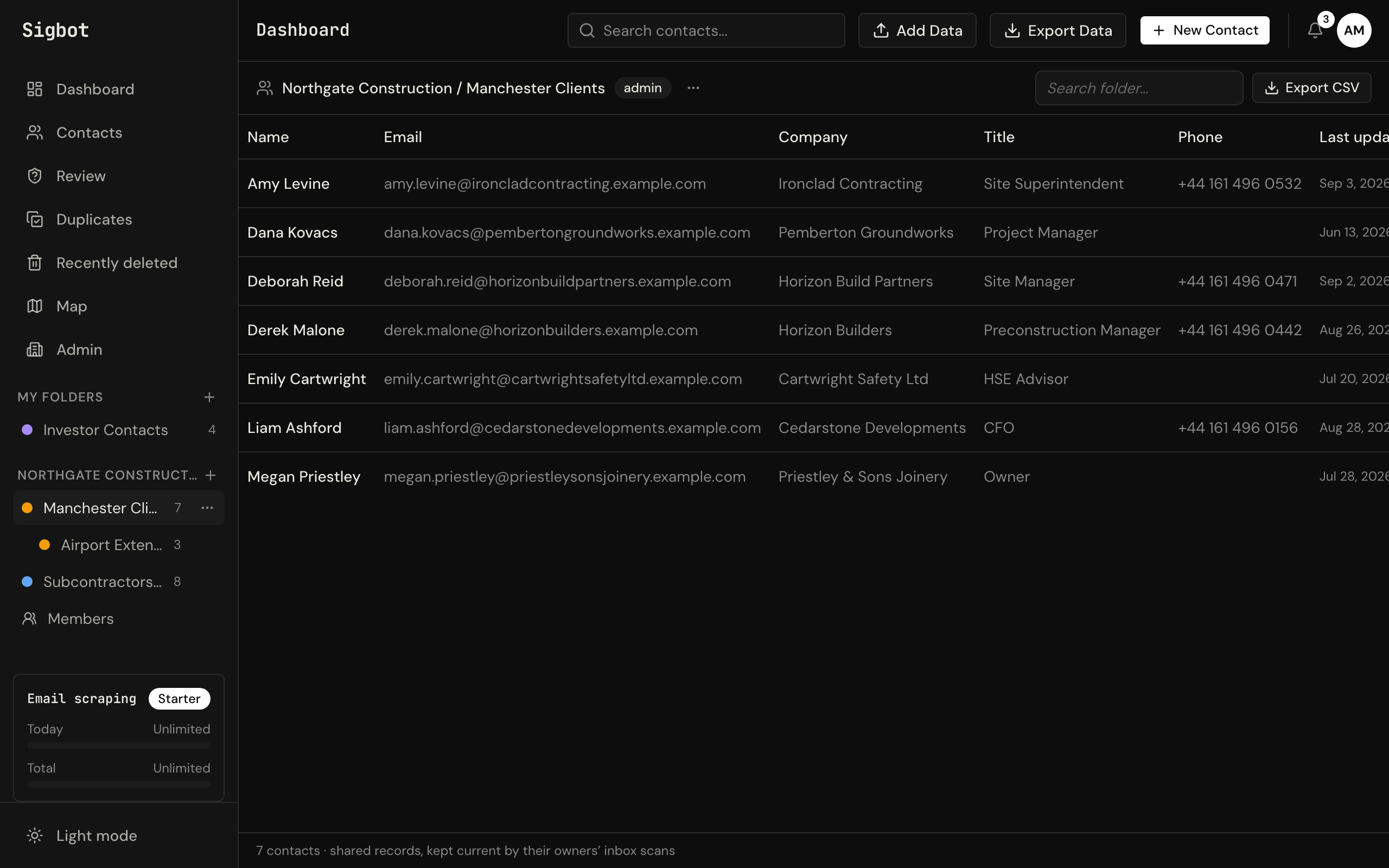
Sigbot reads the email signatures in Outlook and Microsoft 365 and turns each one into a contact: name, job title, company, phone, email and address. On team plans, everyone connects their own Outlook and you share folders, so the whole team works from one contact list built from everyone's mail, not from what one person remembered to save.

Step 1

Invite your team

Start a team plan (Starter or Professional) at sigbot.app and invite your people.

Step 2

Everyone connects Outlook

Each person connects their own mailbox with their Microsoft account. The first scan reads the signatures already in it; newsletters and no-reply mail wait in a review queue.

Step 3

Share folders

Put contacts in team folders, by project, client or trade, and everyone works from the same list.

sigbot.app/team/kingsway-health-centre
A shared project folder in Sigbot showing its contacts, the owner permission badge, and colour-coded project subfolders in the sidebar

Whichever Outlook each person uses. Sigbot reads each mailbox through the person's Microsoft account, not through the Outlook app on their computer, so it's the same in classic Outlook, new Outlook or the web. The shared list is in Sigbot, in the browser at sigbot.app and in the iPhone and Android apps.

It keeps up by itself. After the first scan, Sigbot checks each connected mailbox for new mail: every day on paid plans, every week on Free. New people are added as they email any of you. Duplicates can be merged, and merges can be undone.

On everyone's phone. Caller ID sync in the phone apps can add team folders to each person's address book, so calls from the people the whole team deals with show a name and company: caller ID from your Outlook contacts.

In Excel or Outlook when you need it. Export the whole list, a folder or a selection to Excel or CSV. Sigbot only reads mail and doesn't write to anyone's Outlook contacts, so to have the list in Outlook too, import the CSV as above.

At work, IT approves it once. Microsoft's default setting stops people giving any outside app access to their mail, so most companies have an admin approve Sigbot once, for everyone. Sigbot's Outlook app is publisher-verified by Microsoft (SIGBOT LTD). Our one-page brief for IT admins has the approval link.

Questions.

How do I share a contacts folder in Outlook?

In classic Outlook for Windows, select the folder in People, then Home > Share Contacts, choose the people to share it with and send the invitation. They select Open this Contacts folder in the email. It needs a work account on Microsoft Exchange, and works with people outside your organisation only if your company's sharing policy allows it.

Can I share contacts in new Outlook?

Not at the moment. Microsoft's comparison of new and classic Outlook lists sharing a Contacts folder in new Outlook as under investigation (checked 26 October 2026), and Microsoft says new Outlook doesn't support sharing contact lists. Classic Outlook can share a contacts folder, and any version can export contacts to a CSV file for someone else to import.

Can I share contacts in Outlook on the web?

No. Microsoft says sharing or viewing a shared contacts folder isn't supported in Outlook on the web, and that a shared mailbox's contacts can't be opened there. You can export contacts to a CSV file and send it, and the company address book, which an admin can add outside contacts to, does show in Outlook on the web.

How do I make one contact list for the whole company in Microsoft 365?

Microsoft's guide has an admin create a shared mailbox and add everyone who needs the list as a member; its contacts folder then appears in classic Outlook for each of them. Members can also read and answer the mailbox's email, and its contacts can't be opened in new Outlook or Outlook on the web. For outside contacts everyone emails, an admin can add them to the company address book instead.

What is a contact list in Outlook for?

Sending email to a group of people at once: Microsoft describes it as a collection of email addresses. In classic Outlook you can send one to a colleague in a message, and they save it to their contacts. New Outlook doesn't support sharing contact lists.

How does Sigbot share contacts with a team?

On team plans, everyone connects their own Outlook and you share folders, so the whole team works from one contact list built from everyone's mail. Sigbot reads the signatures in each mailbox and turns each one into a contact, and the list is in the browser and in the iPhone and Android apps, whichever version of Outlook each person uses.

Does Sigbot put the shared contacts into everyone's Outlook?

No. Sigbot only reads mail, and it doesn't write to anyone's Outlook contacts. The shared list is in Sigbot. Anyone can export it to Excel or CSV and import that file into Outlook.

How does the team's list stay up to date?

After the first scan, Sigbot checks each connected mailbox for new mail by itself: every day on paid plans, every week on Free. You can also run a scan whenever you like.

Sources.

Every Outlook and Microsoft 365 step above was checked against Microsoft's support and Learn pages on 26 October 2026. Microsoft changes its menus, and adds features to new Outlook, from time to time; if yours look different, these pages have the latest.

Outlook, Microsoft 365, Exchange and PowerShell are trademarks of the Microsoft group of companies.

One contact list for the whole team.

Everyone connects their own Outlook once, and the whole team works from one list built from everyone's mail. Or see it on a 20-minute call first.

Starting from scratch? How to turn email signatures into a contact database.