Outlook guide · steps checked 27 October 2026

How to get a list of every email address you've emailed in Outlook

Outlook has no button that lists everyone you've emailed. Every version can export your saved contacts to a CSV file, but anyone you never saved is missing, and the suggestions that appear as you type an address can't be opened as a list. With a work or school Microsoft 365 account you can download the contacts Microsoft 365 has picked up from your communications, and an admin can export the last 90 days of the mail you've sent.


The short answer.

For the people you've saved, export your contacts: every version of Outlook can. For the people you've sent mail to, the nearest thing is the suggestions list, which only work or school accounts can download. Your Sent Items hold every address, but Microsoft documents no spreadsheet export for email, only a backup file for Outlook. Every route gives you addresses, not job titles, companies or phone numbers. Those are in people's email signatures, which is what Sigbot reads.

The ways to list the email addresses in Outlook compared
Saved contacts export Auto-complete and suggestions Admin's message trace Sigbot
Who's in it Only the people you saved as contacts People you've sent mail to, mixed with your saved and company contacts Everyone one person sent mail to in the last 90 days The people whose signatures are in your mailbox
What you get A CSV file of whatever was saved for each contact Classic Outlook: no list you can open. Work or school accounts: a download from Microsoft's privacy settings A CSV file of each message's sender, recipients, subject and date Name, job title, company, phone, email and address, in Excel or CSV
Which Outlook Every version Depends on your Outlook and your account (below) Microsoft 365 work accounts, run by an admin Outlook and Microsoft 365, whichever version you use
Kept up to date Export again Changes as you send mail; classic Outlook's own list keeps 1,000 names at most Run it again; nothing older than 90 days Checks for new mail by itself: daily on paid plans, weekly on Free

1. Export the contacts you've saved.

It's the only Outlook export Microsoft documents that gives you a spreadsheet. It has the people you saved as contacts, with whatever you saved for each one, and nobody else.

Not sure which Outlook you have? If there's a File option at the top left, it's classic Outlook. If not, follow the steps for new Outlook.
Classic Outlook for Windows

Export to a CSV file

  1. Choose File > Open & Export > Import/Export.
  2. Choose Export to a file, then Comma Separated Values.
  3. Select the Contacts folder under your account.
  4. Choose Browse, name the file, then Next and Finish.
New Outlook for Windows

Export contacts

  1. On the side panel, select People.
  2. On the ribbon, select Export contacts.
  3. Under Contacts from this folder, choose an option, then Export. The .csv file goes to your Downloads folder.
Outlook on the web and Outlook.com

Manage contacts

  1. On the side panel, select People.
  2. Select Manage contacts > Export contacts.
  3. Choose All contacts or one folder, then Export. The .csv file goes to your Downloads folder.

The file opens in Excel. On a Mac, Microsoft documents only an archive file from legacy Outlook for Mac (see Sent Items), so with a Microsoft 365 or Outlook.com account, export from Outlook on the web instead. More detail, and how to add a sender as a contact: how to extract contacts from Outlook emails into Excel.


2. The auto-complete list: the people you've sent mail to.

When you type in the To, Cc or Bcc box, Outlook suggests names. Microsoft says each new person you email is added to that list, so it's the nearest thing Outlook has to a record of everyone you've emailed. What you can get out of it depends on your Outlook and your account.

Classic Outlook for Windows

The Auto-Complete list

  • Outlook builds it as you send mail. Microsoft says it holds the display names and addresses of people you've sent mail to.
  • It keeps up to 1,000 entries in Outlook for Microsoft 365, 2019 and 2016. Past that, Outlook removes names based on how much you use them.
  • It isn't shared with Outlook on the web, which keeps its own.
  • There's no button to view or export it. Microsoft's only documented way to copy it uses MFCMAPI, a low-level mailbox tool, to move it to another computer as a file for Outlook, not a list you can read.
  • With a Microsoft 365 work mailbox, from Version 2202 the suggestions come from Microsoft Search instead, and Microsoft says the limit and the copy steps don't apply.
Work or school account

Download your discovered contacts

Microsoft 365 keeps the names and contact details it captures from your communications, and lets you download a copy. Microsoft says this setting covers your account everywhere it's used, Outlook on the web and Outlook for Mac included.

  1. Go to Settings & Privacy for your work or school account.
  2. Select the Privacy tab, then under Data options, expand Manage contact suggestions and discovery.
  3. Under Discovered contacts, select Download.

Check what you download. Microsoft doesn't say what the file contains or what format it's in, so open it before you rely on it. Leave the other two controls alone unless you mean to use them: the Discovered contacts toggle stops Microsoft 365 capturing contacts, and Clear data removes what it has gathered.

New Outlook, Outlook on the web and Mac. Suggestions come from your saved contacts, your organisation's address book and the addresses you've sent mail to before. Microsoft documents no way to view or export them inside Outlook. With a personal Microsoft account (Outlook.com or Hotmail), Microsoft's page covers only turning People suggestions off, not downloading them.


3. Your Sent Items: every address, but no list.

Your Sent Items folder has every address you've written to. Getting it out as a list is the hard part: Microsoft's support pages describe CSV exports for contacts only, and for email they describe a backup file for Outlook to open.

Classic and new Outlook for Windows

A .pst backup

  • Classic Outlook: File > Open & Export > Import/Export > Export to a file > Outlook Data File (.pst).
  • New Outlook: Settings > Files > Export, then Get started.
  • Microsoft describes a .pst as a backup, or a way to move mail to another account or computer. Outlook opens it; Excel doesn't.
Outlook for Mac

An .olm archive

  • In legacy Outlook for Mac: Tools > Export (or File > Export), tick the items to export, then Continue and Save.
  • Microsoft says the .olm archive file is the only export option, and that support for legacy Outlook for Mac ends in October 2026.
Microsoft 365 admin

Message trace

An admin with the Exchange Administrator role can list the mail one person sent in the last 90 days, as a CSV file.

  1. In the Exchange admin center, go to Mail flow > Message trace and select Start a trace.
  2. Under Senders, enter the person's address, and set the Time range (up to 90 days).
  3. For more than 10 days, choose the Enhanced summary report. Microsoft says it can take several hours; it appears on the Downloadable reports tab.

What people try instead. One question on Microsoft's own Q&A forum, from someone on new Outlook with nobody saved as a contact (asked in July 2023), has 18 answers and none accepted. Some of them export a mail folder to a CSV file through classic Outlook's Import/Export wizard, then cut it down in Excel: one person's 106,000 rows came down to about 1,300 addresses. Microsoft doesn't document exporting email to CSV, so we haven't given steps for it, and we don't suggest macros or scripts you'd have to trust blindly.

Tidying a list in Excel. Whatever list you end up with, select the column, then Data > Remove Duplicates. Microsoft says the duplicates are deleted for good, so copy the original to another sheet first.


What you get: addresses, not people.

Every route above ends in a list of email addresses. Before you build on one, know what it leaves out.

  • No job titles, companies or phone numbers. Suggestions and lists built from mail hold a name and an address at most, and a contacts export has only what someone typed in.
  • Duplicates. A list built from mail has a row for each message, not each person, which is how 106,000 rows can shrink to 1,300.
  • Junk mixed in. Lists built from your mail mix no-reply senders, newsletters, shared inboxes like info@ and your own colleagues in with the people you actually deal with.
  • Out of date the day you make it. When someone changes job or number, the file doesn't change with them.

The details that are missing are usually in the signature at the bottom of every email those people send you.


4. The people behind the addresses, with Sigbot.

Sigbot reads the email signatures in Outlook and turns each one into a contact: name, job title, company, phone, email and address. It works with Outlook and Microsoft 365, whichever version of Outlook you use, and you export the list to Excel or CSV.

Step 1

Connect Outlook

Start free and connect your Outlook with your Microsoft account.

Step 2

Check the review queue

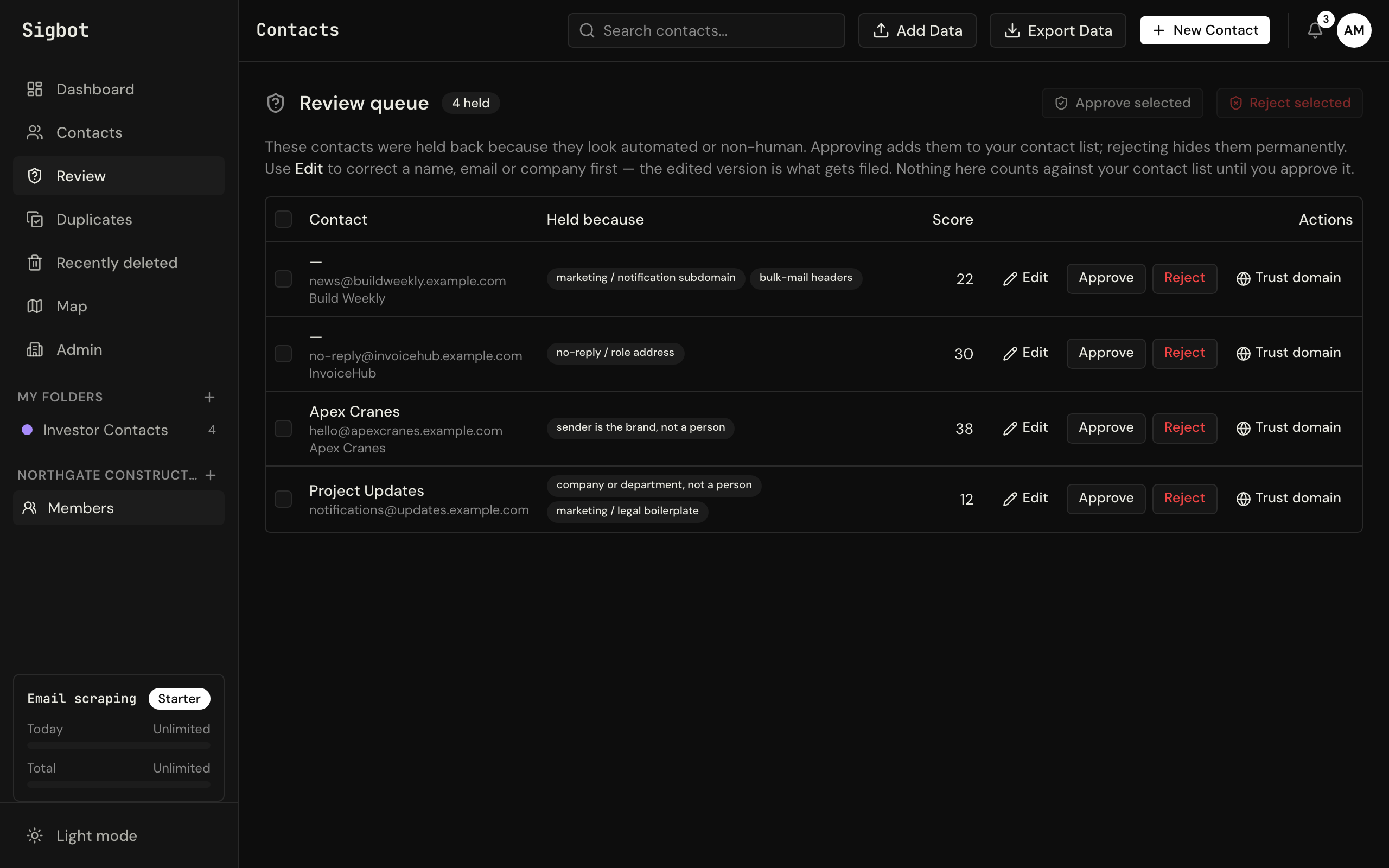
The first scan reads the mail already in your mailbox. Newsletters and no-reply mail wait in a review queue instead of going into your list.

Step 3

Export to Excel or CSV

Download the whole list as an Excel or CSV file whenever you need it.

sigbot.app/contacts/review
The Sigbot review queue holding back no-reply, newsletter and shared-inbox senders, each with the reason it was held and approve, reject and trust buttons

Signatures, not just addresses. Each contact comes from the person's own signature, so the export has the job title, company and phone number that Outlook's lists leave out. Sigbot finds the people whose signatures are in your mailbox. Someone you emailed once who never wrote back hasn't sent you a signature, so for them the address-only routes above are still the way.

A cleaner export. Newsletters and no-reply mail wait in the review queue for you to approve or reject. Duplicates can be merged, and merges can be undone. Addresses that bounce are flagged and left out of exports; nothing is deleted automatically.

It keeps up by itself. After the first scan, Sigbot checks your mailbox for new mail: every day on paid plans, every week on Free. When a newer email's signature shows a different job title or phone number, it updates the contact and keeps their previous job titles and companies.

It only reads. Sigbot only reads mail, and it never writes to your Outlook contacts. At work, most companies have IT approve it once, for everyone, because Microsoft's default setting stops people giving any outside app access to their mail. Sigbot's Outlook app is publisher-verified by Microsoft (SIGBOT LTD), and our one-page brief for IT admins has the approval link.

More from the same list. On team plans you share folders, so the whole team works from one list built from everyone's Outlook: sharing Outlook contacts with your team. The iPhone and Android apps can add the list to your phone's address book, so calls show a name and company. Building a lasting list: a contact database from email signatures. Outlook add-ins and other tools: the ways to turn signatures into contacts.

Questions.

How do I get a list of everyone I've emailed in Outlook?

Outlook has no single export for it. Every version can export your saved contacts to a CSV file, which misses anyone you never saved. A work or school Microsoft 365 account can download its discovered contacts under Settings & Privacy > Privacy > Manage contact suggestions and discovery, and an admin can export up to 90 days of the mail you've sent with message trace.

Can I export the Outlook auto-complete list?

Not as a list you can open in Excel. Classic Outlook's list holds up to 1,000 names and addresses of people you've sent mail to, and Microsoft's only documented way to copy it moves it to another computer with a tool called MFCMAPI. Work or school accounts can download their discovered contacts from Microsoft's privacy settings instead.

Can I export my Sent Items from Outlook to Excel?

Microsoft's support pages describe CSV exports for contacts only. For email they describe an Outlook Data File (.pst), a backup that Outlook opens, not a spreadsheet. Answers on Microsoft's Q&A forum export a mail folder to CSV through classic Outlook's Import/Export wizard, but Microsoft doesn't document that, or anything like it for new Outlook or Outlook on the web.

How do I export email addresses from new Outlook or Outlook on the web?

You can export your saved contacts: in new Outlook, People > Export contacts; in Outlook on the web, People > Manage contacts > Export contacts. Both save a CSV file to your Downloads folder. Microsoft doesn't document a way to export the suggested recipients, or the addresses in your mail, from either.

How do I get job titles and phone numbers, not just email addresses?

Outlook's exports include only what was saved for each contact, and its suggestions hold names and addresses. The rest is usually in each person's email signature: copy it into their contact by hand, or use a tool such as Sigbot, which reads the signatures in Outlook and Microsoft 365 and exports name, job title, company, phone, email and address to Excel or CSV.

Does Sigbot change anything in my Outlook?

No. Sigbot only reads mail, and it never writes to your Outlook contacts. The list is in Sigbot, in the browser and in the iPhone and Android apps, and you export it to Excel or CSV whenever you want it somewhere else.

Sources.

Every Outlook, Microsoft 365 and Excel step above was checked against Microsoft's support and Learn pages on 27 October 2026. Microsoft changes its menus, and adds features to new Outlook, from time to time; if yours look different, these pages have the latest.

Outlook, Microsoft 365, Exchange and Excel are trademarks of the Microsoft group of companies.

The people, not just the addresses.

Connect Outlook once and export everyone whose signature is in it, with their job title, company and phone. Or see it on a 20-minute call first.

Only need your saved contacts in Excel? How to extract contacts from Outlook emails into Excel.