Outlook, iPhone and Android guide · steps checked 27 October 2026

How to get phone numbers out of Outlook emails

Outlook can't pull phone numbers out of your emails for you: the numbers are in the signatures at the bottom of people's messages, and Outlook's export only includes the contacts you've saved. For one number, search Outlook for the person, open their latest email and copy the number from the signature into a contact. To get everyone's number at once, and onto your phone so calls show a name, use a tool that reads signatures, such as Sigbot.


The short answer.

It depends on how many numbers you need. Outlook search finds one number in a minute, and saving the person as a contact keeps it and gets it onto your phone. Outlook's export only has the numbers you've already saved. A tool that reads signatures gets every number in your mailbox at once.

The four ways compared
Search Outlook Save a contact Outlook's export Sigbot
Good for One number, right now The few people you call often The contacts you've already saved Everyone whose signature is in your mailbox
What you get Their signature on screen, to read or copy A contact with the number you typed in A .csv file of what was saved for each contact A contact for each person, phone numbers included, which you can export to Excel or CSV
On your phone No Yes, with Outlook's Save Contacts or Sync Contacts on No Yes, with Caller ID in the iPhone and Android apps
When a number changes Search again Edit the contact Edit the contact, then export again Updated from the newer signature, after Sigbot's daily check (weekly on Free)

1. Find one person's number with Outlook search.

Search for the person's emails and open the newest one: people update their signature when their number changes.

New and classic Outlook for Windows

Search from: their name

  1. Click the search box at the top of the Outlook window.
  2. Type from: and the first few letters of their name, then pick them from the list Outlook suggests. Or type their full name in quotes, such as from:"Jo Bloggs".
  3. Open their latest email. The number is in the signature.
Outlook on the web and Outlook.com

Search for the person

  1. Start typing their name in the search box, and choose them from the suggested people.
  2. Selecting them lists the emails related to them. For only what they sent, select Filters at the end of the search box and fill in From.
  3. Open their latest email. The number is in the signature.
Outlook for Mac

Search, then filter

  1. Type their name in the search box at the top of Outlook.
  2. For only their emails, type from: and their name with no space after the colon, or select Filters at the end of the search box.
  3. Open their latest email. The number is in the signature.
Outlook for iPhone and Android

Search the app

  1. On iPhone, double-tap the Search icon for a keyword search box. On Android, tap the Search icon twice for a box that searches your email.
  2. Type their name and open their latest email. The number is in the signature.
  3. Tapping a person's name opens their contact card, which shows a phone number if Outlook already has one.
Colleagues are easier. For someone in your own organisation, select their name in any email: their profile card can show details from your company directory, without you saving them as a contact. For anyone outside your organisation, their signature is usually the only place their number is.

No signature in their latest reply? Many people put the full signature only on new emails. Scroll down the thread, or open one that started a conversation.


2. Who just rang? Search Outlook for the number.

An unknown number may well be sitting in a signature in your inbox. Outlook's search reads the text of your emails, signatures included, so search for the number itself.

Type the number into the search box in Outlook for Windows, on the web or for Mac. Microsoft says a plain search looks through the sender's name, subject, message body and many attachments. On the web and on Mac, Body: followed by the number searches only the message body.

Two rules from Microsoft's search help for Outlook for Windows and Outlook.com decide whether the number turns up:

  • It ignores runs of fewer than five digits. Search for 9810 and you won't find 98101.
  • It matches the start of words. Searching ray finds Raymond but not tray, so 900123 won't find 07700900123 written as one string.

So search the number the way people write it in signatures, with a group of at least five digits. For a mobile that rang as +44 7700 900123, try 07700 900123, then 07700900123. A number written in short groups, such as 020 7946 0123 or (613) 555-0123, may not turn up by number at all.

Already saved them as a contact? In new Outlook and Outlook on the web, the search box on the People page finds contacts by phone number, and partial matches count.

Found them? Save the number from your phone's call list, with the name and company from the signature, so the next call shows who it is: the steps for iPhone and Android.

3. Save the number as a contact, and get it onto your phone.

Saving the sender as an Outlook contact keeps their number where your phone can pick it up. Outlook doesn't copy it from the signature, so type or paste it in.

Not sure which Outlook you have on Windows? If there's a File option at the top left, it's classic Outlook. If not, follow the steps for new Outlook.
Classic Outlook for Windows

Add to Outlook Contacts

  1. Open the email in the reading pane and select the sender's name.
  2. On the profile card, select View more options for interacting with this person, then Add to Outlook Contacts.
  3. Enter the phone number from their signature, then select Save & Close.
New Outlook and Outlook on the web

Add to contacts

  1. Open the email in the reading pane and select the sender's name.
  2. On the profile card, select More options > Add to contacts, or the Contact tab, then Add to contacts.
  3. Select Edit contact, enter the phone number from their signature, then select Save.
Outlook for Mac

Add to Contacts

  1. In Mail, open the email and select the sender's name or email address.
  2. On the profile card, select Add to Contacts.
  3. Enter the phone number from their signature, then select Save.
Outlook for iPhone and Android

Add Contact

  1. In the email, tap the person's name.
  2. Tap Add Contact.
  3. To put in the number from their signature, open the contact and tap Edit.

Getting it onto your phone. Your phone names a caller only from its own contacts. The Outlook app copies your Outlook contacts there when Save Contacts (Outlook for iPhone: Settings, then your account) or Sync Contacts (Outlook for Android: Settings > Accounts, then your account) is on, though on a work account your company can switch it off. Full steps: caller ID from your Outlook contacts. On, and calls still show a number? The fixes.

Or save it straight into your phone's contacts, without Outlook:

iPhone

In the Contacts app

  1. Open the Contacts app and tap the Add button (+).
  2. Enter their name, company and the phone number from their signature.
  3. Tap Done.
Android (Google Contacts)

In the Contacts app

  1. Open the Contacts app and tap Add, at the bottom right.
  2. Enter their name and the phone number from their signature. To add more, such as their company, tap the field or Add fields.
  3. Tap Save. Contacts saved to your Google Account sync to your other Android devices.

Reading your work email in Apple's Mail app instead? Apple says Siri suggests new contacts based on your activity in apps such as Mail.

All of this is quick for five people. For a few hundred it's a long job, and each number goes out of date when someone changes job. Some Outlook add-ins fill in a contact from the email you have open: the ones we found.


4. Why Outlook's export won't do it.

It's the first thing most people try, and it doesn't reach the numbers in signatures.

Outlook exports your contacts to a .csv file that opens in Excel (People > Export contacts in new Outlook). The file holds what was saved for each contact, so someone who has only emailed you isn't in it. Microsoft lists a CSV export for contacts only. Email exports to an Outlook Data File (.pst), which Microsoft describes as a way to back up a mailbox or move it to another account or computer: a file for Outlook to open, not a list of numbers. Neither export reads signatures.

So the export helps once you've saved people as contacts, not instead. The steps for each version: how to export Outlook contacts to Excel.


5. Every number at once, on your phone, with Sigbot.

Sigbot reads the email signatures in Outlook and Microsoft 365 and turns each one into a contact, phone numbers included. Its iPhone and Android apps then put those people on your phone, so a call from someone who has only ever emailed you shows their name and company.

Step 1

Connect Outlook

Start free and connect Outlook. The first scan reads the signatures already in your mailbox.

Step 2

Check the list

Newsletters and no-reply mail wait in a review queue, and merges can be undone. Export the list to Excel or CSV any time.

Step 3

Turn on Caller ID

Install Sigbot from the App Store or Google Play, log in, and open Profile > Caller ID & phone sync.

iPhone

Label calls, or add contacts

  • Label calls: when one of your Sigbot contacts rings, your iPhone shows "Name – Company (Sigbot)" under the number, and nothing is added to your contacts.
  • Or add them to your address book, as on Android.
iPhone and Android

Add to my address book

  • Sigbot adds your contacts to your phone's own address book and keeps them up to date, so calls show a name and company instead of a number.
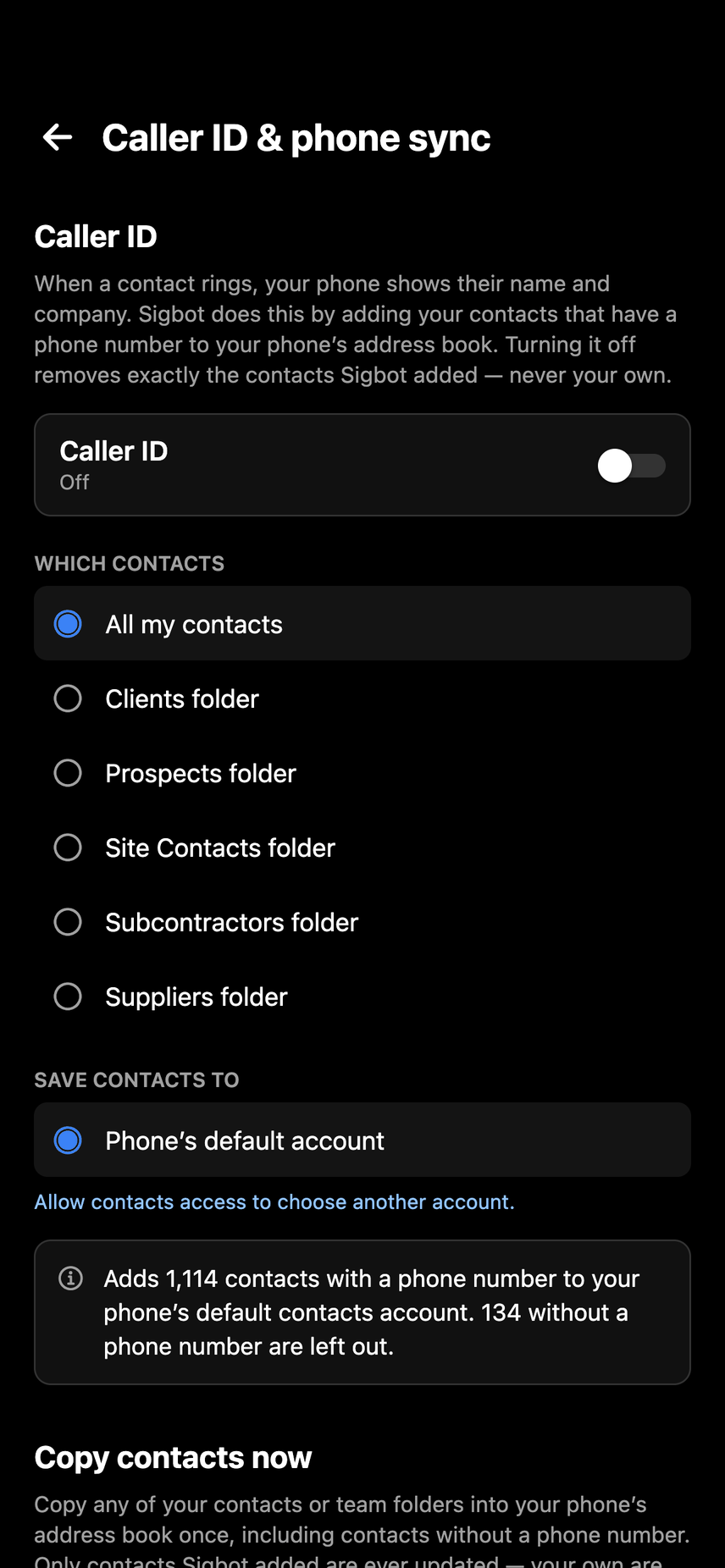
Sigbot's Caller ID and phone sync screen before it's switched on: the Caller ID switch, a choice of all contacts or one folder, and the phone account to save them to
Profile > Caller ID & phone sync, before it's switched on. Demo data.

It keeps up by itself. After the first scan, Sigbot checks your mailbox for new mail: every day on paid plans, every week on Free. When a newer email's signature shows a different phone number, Sigbot updates the contact, but never overwrites anything you typed in yourself.

It only reads your mail. Sigbot has read-only access (Mail.Read): it can't send, move or delete mail, and never changes your Outlook contacts.

At work, IT approves it once. Microsoft's default stops people giving any outside app access to their mail, so most companies have an admin approve Sigbot once, for everyone. Sigbot's Outlook app is publisher-verified by Microsoft (SIGBOT LTD). Our brief for IT admins has the approval link.

For a team: on team plans you share folders, so everyone works from one contact list built from everyone's Outlook (sharing Outlook contacts with your team). More on a list that lasts: turning email signatures into a contact database.


Questions.

Can Outlook extract phone numbers from emails automatically?

No. Outlook's CSV export covers the contacts you've saved, and email exports to a .pst backup file, so nothing in Outlook pulls the numbers out of email signatures in bulk. You can copy numbers into contacts one at a time, or use a tool that reads signatures, such as Sigbot.

How do I find someone's phone number in Outlook?

Search for their emails by typing from: and their name in Outlook's search box, open the most recent one and read the number in the signature. For colleagues in your own organisation, selecting their name can show a profile card with details from your company directory.

How do I save a phone number from an email signature to my iPhone?

In Outlook for iPhone, tap the sender's name and tap Add Contact, then open the contact and tap Edit to add the number. With Save Contacts turned on in Outlook's settings, Outlook copies the contact into your iPhone's contacts. Or open the iPhone's Contacts app, tap the Add button, enter the name and number, and tap Done.

Can I find out who called me by searching the number in Outlook?

Often, yes. Outlook's search reads the text of your emails, signatures included. It ignores runs of fewer than five digits and matches the start of words, so search for the number the way people write it, with a group of at least five digits.

Does exporting my Outlook contacts include numbers from email signatures?

No. The export contains what was saved for each contact. A number that's only in someone's email signature isn't in it until you save that person as a contact and type the number in.

Does Sigbot change my Outlook contacts?

No. Sigbot only reads mail, with Microsoft's read-only Mail.Read permission, and never changes your Outlook contacts. It builds its own contact list from the signatures in your mailbox, and its iPhone and Android apps put those people on your phone so calls show a name and company.

Sources.

Every Outlook, iPhone and Android step above was checked against these pages on 27 October 2026. Menus change from time to time; if yours look different, these pages have the latest steps.

Outlook and Microsoft 365 are trademarks of the Microsoft group of companies. iPhone, Mac and Siri are trademarks of Apple Inc. Android and Google Play are trademarks of Google LLC.

Every number in your inbox, on your phone.

Connect Outlook once and everyone whose signature is in it can show by name when they ring. Or see it on a 20-minute call first.

More on the phone app: Sigbot for iPhone and Android.